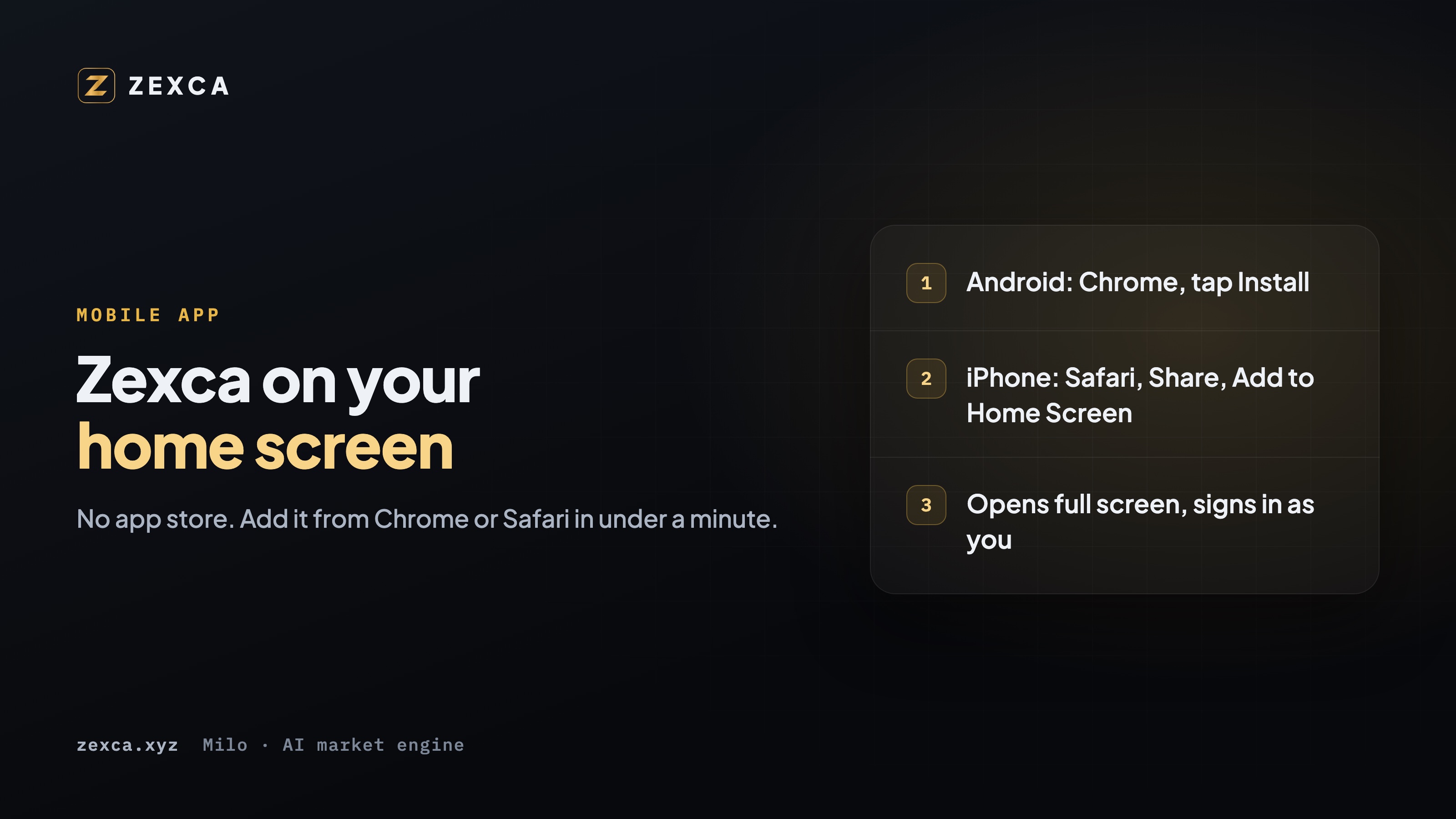
Zexca runs as an app on your phone without an app store. You add it to your home screen from the browser you already have, and from then on it opens full screen, with its own icon, like any other app. It takes under a minute.
The full guide, with a button that installs it for you on Android, is on the Zexca mobile app page. Here are the same steps.
Android: install from Chrome
- Open zexca.xyz in Google Chrome. Not inside Telegram, Instagram or another app (more on that below).
- Tap Install. On the mobile app page, press Install on Android. When Chrome asks, choose Install.
- No box appeared? Use Chrome's menu. Tap the three dots at the top right, then Add to Home screen or Install app.
- Open Zexca and sign in. The Zexca icon is now on your home screen. Open it and sign in with the account you already have.
There is no file to download and nothing to allow in your phone's settings: Chrome installs it itself.
iPhone and iPad: add it from Safari
- Open this page in Safari. Not inside another app.
- Tap Share. The square with an arrow, at the bottom of the screen (top right on an iPad).
- Tap Add to Home Screen. Scroll down the list to find it.
- Tap Add. Zexca now sits on your home screen. Open it and sign in.
On an iPhone, only Safari can add an app to the home screen, so if you normally use Chrome there, switch to Safari for this one step.
The link opened inside Telegram or Instagram?
This is where most people get stuck. Telegram, Instagram, WhatsApp and similar apps open links in their own built-in browser, and that browser cannot install apps. The fix is quick:
- tap the menu in the corner of that screen and choose Open in browser, or
- copy the link, open Chrome (Android) or Safari (iPhone), and paste it there.
Then follow the steps above.
What changes once it is installed
- Full screen. No address bar, just Zexca.
- Always current. New versions arrive on their own. When one is ready, the app tells you, and a tap loads it.
- One account. The same login as the website. Your signals, demo desks and wallet are all there.
On a computer?
Open the mobile app page on your computer and scan the QR code with your phone's camera. The page opens on your phone, ready to install.
If you do not have an account yet, a free signal account is the place to start.
Educational content, not investment advice. Trading carries risk, including the loss of capital.